Category: Uncategorized

  • How to Add Location on Snapchat on Android and iOS: A Step-by-Step Guide

    How to Add Location on Snapchat on Android and iOS: A Step-by-Step Guide


    Adding a location to your Snapchat is an exciting way to share your whereabouts and enhance your Snaps. Whether you’re showcasing a vacation spot, highlighting a local café, or promoting your business, Snapchat’s location features make it easy to connect with friends and followers in a meaningful way. From using location stickers to applying geofilters, you can add a personal touch that reflects where you are. In this guide, we’ll walk you through step-by-step instructions on how to add locations on Snapchat, use them in Stories and Streaks, and even feature your business on the Snap Map.

    How to Add a Location on Snapchat

    Adding a location to your Snap provides context and allows friends to see where you are. Here’s how to do it:

    1. Open Snapchat and take a photo or video by tapping the capture button.
    2. Tap the sticker icon (a square smiley face) on the right side of the screen.
    3. In the sticker drawer, tap on the “Location” sticker.
    4. A list of nearby places will appear. Scroll through and select the appropriate location.
    5. Once added, you can drag the location sticker to reposition it and pinch to resize it on your Snap.
    6. After customising your Snap, tap the “Send To” button to share it with friends or add it to your Story.

    How to Add Location on Snapchat Filter

    Snapchat offers location-based filters, also known as geofilters, which add a visual overlay to your Snaps based on your current location. To use them:

    1. Take a photo or video on Snapchat.
    2. Swipe left or right on the screen to browse through filters until you find one that displays your current location.
    3. If location-based filters aren’t appearing, verify that location services are turned on for Snapchat in your device’s settings.
    4. Once you’ve selected the desired filter, tap the “Send To” button to share your Snap.

    How to Add Location on Snapchat Streak

    Maintaining a Snapstreak involves sending Snaps back and forth with a friend within a 24-hour period. Adding a location to your Snap can make your interactions more engaging.

    1. Take your photo or video.
    2. Use either the location sticker or a location filter as described above.
    3. Select the friend you have a streak with and send the Snap.

    How to Add Location on Snapchat Story

    Sharing your location in a Snapchat Story allows all your friends to see where you are.

    1. Take a photo or video.
    2. Use the location sticker or swipe to a location filter.
    3. Tap the “Send To” button and select “My Story” to share it with all your friends.

    How to Add Business Location on Snapchat Map

    To have your business appear on Snapchat’s map, you can suggest a new place or edit an existing one.

    1. From the Camera screen, pinch your fingers together to access the Snap Map.
    2. Suggest a New Place:
    3. Tap the settings icon (⚙️) in the top-right corner.
    4. Select “Suggest a Place.”
    5. Enter the necessary details about your business, such as name, address, category, and contact information.
    6. Submit the information for review.

           Suggest an Edit to an Existing Place:

    1. Tap on the place you’d like to suggest an edit for.
    2. Tap the three-dot menu icon next to the business name.
    3. Select “Suggest an Edit.”
    4. Update the relevant information and submit for review.

    Please note that it may take some time for Snapchat to review and approve your suggestions.

    FAQs

    Why am I not getting a location filter on Snapchat?

    Location filters may not appear for several reasons:

    • Location Services Disabled: Ensure that location services are enabled for Snapchat in your device’s settings.
    • Outdated Snapchat App: Update Snapchat to the latest version to access all features, including location-based filters.
    • Geographical Restrictions: Some filters are available only in specific regions. If you’re outside the supported location, the filter won’t appear.
    • Slow Internet Connection: A poor network may prevent filters from loading. Try connecting to a more stable Wi-Fi or mobile network.

    How to Add Location on Snapchat Video?

    Adding a location to a video Snap follows the same steps as adding it to a photo:

    1. Capture your video using Snapchat’s camera.
    2. Tap the sticker icon (a square smiley face) from the right panel.
    3. Choose the “Location” sticker.
    4. Select the desired location from the list.
    5. Adjust the sticker’s position and size on the video, then send or add it to your Story.

    Where Is Location Sticker on Snapchat?

    The location sticker is located within the sticker drawer:

    1. Capture a Snap.
    2. Tap the sticker icon (square smiley face).
    3. Scroll through the options in the sticker drawer; the location sticker is usually among the first few options or under the “Explore” tab.

    If you can’t find it, ensure that location services are enabled for Snapchat.

    Can someone track my location with Snapchat?

    Snapchat does not allow others to track your location unless you explicitly share it. Here’s how to manage your location privacy:

    • Ghost Mode: Turn on Ghost Mode in the Snap Map settings to hide your location from everyone.
    • Custom Privacy Settings: Use “Only These Friends” or “My Friends” options to share your location selectively.
    • Snap Map Sharing: Only the location you share on Snap Map updates when the app is open. It does not track your movements in real time.


    For the latest tech news and reviews, follow Gadgets 360 on X, Facebook, WhatsApp, Threads and Google News. For the latest videos on gadgets and tech, subscribe to our YouTube channel. If you want to know everything about top influencers, follow our in-house Who’sThat360 on Instagram and YouTube.


    Webb Telescope Tracks Formation and Expansion of Carbon-Rich Dust Shells in Star System


    Samsung Galaxy S25 Series Leaked Promo Images Confirm Key Design Changes


    Source link

  • How to Use WhatsApp Web: A Step-by-Step Guide

    How to Use WhatsApp Web: A Step-by-Step Guide


    WhatsApp Web is an incredibly useful extension of the popular messaging app, allowing users to access their chats on a computer. This feature bridges the gap between mobile and desktop communication, whether for work or personal convenience. Following simple steps, users can link their accounts and make the most of WhatsApp’s capabilities on a larger screen. This guide provides detailed instructions, highlights features, and addresses common questions and concerns.

    What is WhatsApp Web?

    WhatsApp Web is a browser-based version of the WhatsApp mobile application. It mirrors your phone’s WhatsApp account, syncing all messages, contacts, and media files to your computer. This enables you to send and receive messages, share files, and access conversations in real time without relying solely on your smartphone. WhatsApp Web doesn’t function independently; it relies on an active connection to the WhatsApp app on your phone. Any actions performed on the web version, such as sending messages or deleting chats, are instantly reflected on the mobile app.

    How to Set Up WhatsApp Web

    Setting up WhatsApp Web is a straightforward process. Here’s how you can do it:

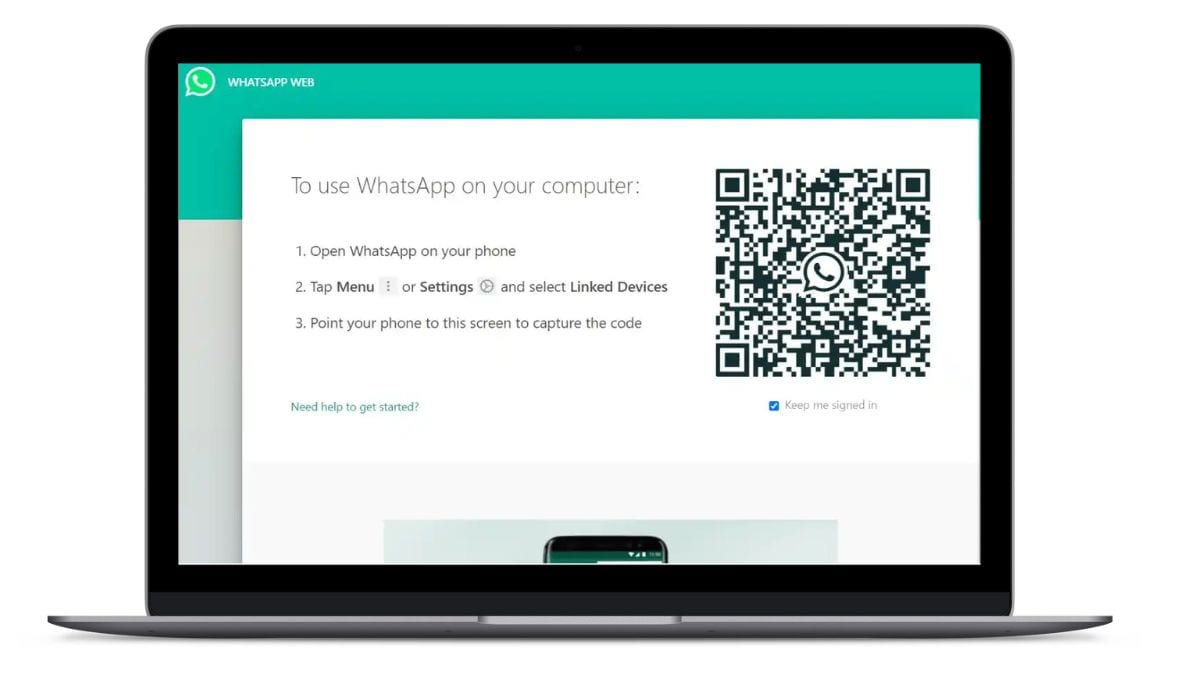
    1. Open a web browser on your computer and navigate to web.whatsapp.com.
    2. A QR code will be displayed on the screen.
    3. Open WhatsApp on your Android or iOS
    4. Select ‘Link a Device’ from the Linked Devices menu.
    5. Authenticate using your device’s security method, such as a fingerprint, face recognition, or PIN.
    6. Scan the QR code on the computer screen. This will link your WhatsApp account to the web browser.
    7. Your WhatsApp chats will now appear on the computer screen, allowing you to send messages, share files, and more.

    How to Remove Linked Devices From WhatsApp Web

    If you need to unlink a device from WhatsApp Web, the process is quick and easy:

    1. Open WhatsApp on your phone and navigate to the ‘Linked Devices’ section.
    2. View Active Sessions in which a list of all devices currently linked to your WhatsApp account will appear.
    3. Tap on the device you wish to remove and select ‘Log Out’.
    4. This will immediately disconnect that session.

    This feature is particularly useful if you forget to log out from a public or shared computer.

    Key Features of WhatsApp Web

    WhatsApp Web offers several features that make it a powerful tool for users:

    1. Messaging: Send and receive text messages, photos, videos and voice notes.
    2. File Sharing: Easily share documents, PDFs, images, and videos.
    3. Media Viewing: View and download media files directly on your computer.
    4. Notifications: Receive desktop notifications for incoming messages, ensuring you don’t miss important updates.
    5. Customisation: Adjust settings like notifications and chat backgrounds to suit your preferences.
    6. Syncing: Any changes made on WhatsApp Web are mirrored on the mobile app.

    These features provide a seamless user experience, especially for those who frequently switch between devices.

    What are the Limitations of Using WhatsApp Web?

    While WhatsApp Web is highly convenient, it does come with certain limitations:

    1. Dependency on Mobile: WhatsApp Web requires an active connection to the WhatsApp app on your phone. If your phone’s battery dies or lose internet connectivity, WhatsApp Web will stop functioning.
    2. No Voice or Video Calls: Unlike the mobile app, WhatsApp Web does not support voice or video calling.
    3. Limited Settings: Some advanced settings, such as account management and privacy adjustments, can only be accessed through the mobile app.
    4. Browser Dependency: WhatsApp Web works best on specific browsers like Chrome, Firefox, and Edge. Other browsers may not provide full functionality.

    Despite these drawbacks, WhatsApp Web remains a valuable tool for many users.

    How to Make Calls Using WhatsApp Web

    Currently, WhatsApp Web does not offer voice or video calling capabilities. Users who wish to make calls must use the mobile or the desktop app. This limitation has been a point of feedback for WhatsApp, and there’s hope that future updates may include calling functionality for the web version.

    Troubleshooting Connectivity Issues on WhatsApp Web

    If you experience problems with WhatsApp Web, consider these troubleshooting tips:

    1. Check Internet Connection: Ensure both your phone and computer have stable and active internet connections.
    2. Restart Browser: Close and reopen the browser to refresh the connection.
    3. Update WhatsApp: Verify that you’re using the latest version of the WhatsApp app on your phone.
    4. Clear Browser Cache: Clear your browser’s cache and cookies to resolve loading issues.
    5. Switch Browsers: If the issue persists, try using a different browser.

    These steps should resolve the most common issues, ensuring a smooth experience with WhatsApp Web.

    Frequently Asked Questions (FAQs)

    Is the video or voice call feature available on WhatsApp Web?

    No, these features are currently unavailable on WhatsApp Web. Use the mobile app for calls.

    Can you enable dark mode on WhatsApp Web?

    Yes, you can activate dark mode by going to the three-dot menu, selecting ‘Settings’, and choosing the ‘Dark’ theme.

    How many days will WhatsApp Web remain active once I log in?

    WhatsApp Web stays active as long as your phone has an internet connection. If inactive, it may log out automatically after 14 days.

    Is WhatsApp Web secure?

    Yes, WhatsApp Web uses end-to-end encryption to keep your messages private. Always log out from shared or public computers for added security.

    Can I use WhatsApp Web on multiple computers?

    You can link your WhatsApp account to multiple computers, but only one session can be active at a time.


    Source link

  • How to Read Deleted WhatsApp Messages on Android and iOS

    How to Read Deleted WhatsApp Messages on Android and iOS


    WhatsApp‘s “Delete for Everyone” feature allows users to remove sent messages within a certain timeframe, helping to correct mistakes or retract unwanted content. However, this often leaves recipients curious about what was deleted. Whether it’s a personal message or something important, there are ways to retrieve these messages. This guide offers step-by-step methods for both Android and iOS users to view deleted WhatsApp messages using features like notification history, chat backups, and third-party apps.

    How to See Deleted WhatsApp Messages on Android

    There are many ways to delete messages on Android. The operating system provides both integrated options on WhatsApp as well as through third-party apps. Check below to see all the ways you can check the deleted messages on WhatsApp.

    Read Deleted WhatsApp Messages via Notification History

    Android devices running version 11 and above include a Notification History feature. This tool keeps a log of all notifications received, making it a straightforward way to access deleted WhatsApp messages.

    Steps to Enable Notification History:

    1. Open Settings on your Android phone.
    2. Go to Notifications and select Advanced Settings (this may vary by device).
    3. Tap Notification History and toggle it on.
    4. Once enabled, your phone will log incoming WhatsApp messages, even if they are deleted.
    5. To view them: Return to Settings > Notifications > Notification History and scroll through the recorded messages.

    This feature is free, built into your device, and doesn’t require third-party apps. However, it has limitations; it only logs messages if the notification was received, meaning muted chats won’t appear.

    Read Deleted WhatsApp Messages via WhatsApp Chat Backup

    WhatsApp provides a Chat Backup feature, allowing you to restore deleted messages if a backup was created before deletion. Backups can be made manually or automatically on a daily, weekly, or monthly schedule.

    1. Open WhatsApp and go to Settings > Chats > Chat Backup.
    2. Ensure the backup frequency is set to daily or an appropriate interval.
    3. Go to your device’s settings, find WhatsApp and uninstall it.
    4. Download and install WhatsApp from the Google Play Store.
    5. Open WhatsApp, verify your phone number, and tap Restore when prompted to retrieve chats from the backup.

    This method works well if the deleted messages are part of the last backup. However, new messages received after the backup and before deletion will not be restored.

    Read Deleted WhatsApp Messages via Third-Party Apps

    Third-party apps like Notisave are designed to save notifications and can help access deleted WhatsApp messages. These apps monitor and store incoming notifications, including those that have been deleted.

    1. Download and install the third-party app from the Google Play Store.
    2. Launch the app and grant it permission to access notifications and storage.
    3. Open Notisave whenever you want to view deleted messages from WhatsApp.

    Note: The steps and access permission may vary depending on the app you are using. You can follow the prompts/steps given in the app to navigate it easily.

    These apps are easy to use but come with privacy concerns. Always read the app’s privacy policy and download only from reputable sources. They cannot retrieve media files or messages that were not delivered as notifications.

    How to See Deleted WhatsApp Messages on iOS

    Read Deleted WhatsApp Messages via WhatsApp iCloud Backup

    For iPhone users, WhatsApp offers iCloud backup integration, making it possible to restore deleted messages.

    1. Open WhatsApp and go to Settings > Chats > Chat Backup.
    2. Check the date and time of the last backup to ensure it contains the deleted messages.
    3. Press and hold the WhatsApp app icon, then tap Delete App.
    4. Download WhatsApp from the App Store.
    5. Open WhatsApp, verify your phone number, and follow the prompts to restore chats from iCloud.

    This method is reliable for retrieving deleted messages if a backup exists. However, restoring from iCloud replaces current chats with the backup data.

    Read Deleted WhatsApp Messages via iTunes Backup

    If you back up your iPhone regularly using iTunes, you can restore deleted WhatsApp messages by rolling back to an earlier backup.
    Steps to Use iTunes Backup:

    1. Connect your iPhone to a Mac or PC.
    2. Open iTunes or Finder on macOS Catalina
    3. Select your device from the sidebar.
    4. Click Restore Backup and select the backup file containing the deleted messages.
    5. Wait for the process to complete.

    While effective, this method restores all app data, meaning any new data after the backup will be lost.

    Frequently Asked Questions (FAQs)

    How to check WhatsApp deleted messages without a backup?

    On Android, use the Notification History feature or a third-party app like Notisave. These methods log notifications, allowing you to view deleted messages without needing a backup.

    Can I restore a deleted message on WhatsApp?

    Yes, but only if the message was included in a previous backup. Restoring messages requires uninstalling and reinstalling WhatsApp, followed by restoring from a backup on iCloud, Google Drive, or iTunes.

    Is it safe to use third-party apps to read deleted messages on WhatsApp?

    While apps like Notisave are popular, they require access to sensitive data like notifications and storage. Use these apps cautiously, download them from reputable sources, and read their privacy policies before granting permissions.

    Can I retrieve media files along with deleted WhatsApp messages using notification history apps?

    No, notification history apps only log text notifications. To recover deleted media, rely on backups stored on Google Drive, iCloud, or local storage.


    Source link

  • How to Check WiFi Password on Android, iOS, Windows, and macOS

    How to Check WiFi Password on Android, iOS, Windows, and macOS


    Has it ever happened that you are trying to connect a new device to your wi-fi and you suddenly forgot the password? For many users, remembering the WiFi password can be a hassle, especially when connecting new devices or sharing access with guests. Fortunately, there are straightforward methods to retrieve your WiFi password. In this blog, you can learn how to check your wi-fi password on Android, iOS, Windows, and macOS. This guide will walk you through each method step-by-step.

    How to Check WiFi Password on Android

    On Android devices, the method to check your WiFi password varies depending on the version of the operating system you are using. Here’s how to find it:

    For Android 10 and Above:

    1. Open the Settings app.
    2. Tap on Network & Internet.
    3. Select Internet and locate your connected WiFi network.
    4. Tap the gear icon next to the network name.
    5. Press the Share button (this appears as a QR code icon).
    6. Authenticate using your device’s unlock code or biometrics if prompted.
    7. The WiFi password will appear below the QR code.

    This method is convenient for sharing access, as others can connect by simply scanning the QR code.

    How to Check WiFi Password on iOS

    Apple restricts direct access to saved WiFi passwords on iPhones, but there are alternative methods:

    1. Open the Settings app on your iPhone
    2. Tap on Wi-Fi to view the list of available networks.
    3. Find the WiFi network you are currently connected to and tap the “i” icon (information icon) next to it.
    4. Tap on the Password field. You will be prompted to authenticate using Face ID, Touch ID, or your device passcode.
    5. Once authenticated, the password will be displayed.
    6. You can tap Copy to share it with others or write it down.

    How to Check WiFi Password on Windows

    Windows makes it easy to retrieve saved WiFi passwords with these methods:

    Using the Control Panel:

    1. Open the Control Panel and go to Network and Sharing Center.
    2. Click on your active WiFi connection name.
    3. In the new window, select Wireless Properties.
    4. Switch to the Security tab.
    5. Check the box labelled Show characters to reveal the password.

    Using Command Prompt:

    1. Open Command Prompt as an administrator.

    Type the following command:

    ‘netsh wlan show profile name=”YourWiFiName” key=clear

    1. Replace YourWiFiName with your network name
    2. Press Enter.
    3. Look for the line labelled Key Content, which displays the password.

    How to Check WiFi Password on macOS

    macOS users can easily retrieve saved WiFi passwords using the following method:

    1. Open Keychain Access (found in Applications > Utilities).
    2. Use the search bar to find your WiFi network name.
    3. Double-click the network entry.
    4. Check the box labelled Show Password.
    5. Enter your Mac’s administrator password to confirm.

    Once confirmed, the saved password will appear in plain text.

    Frequently Asked Questions (FAQs)

    Who can see my Wi-Fi password?

    Only individuals with access to connected devices or those with administrative privileges to the router can view the saved password. Secure passwords and robust router settings can prevent unauthorised access.

    What is a good Wi-Fi password?

    A strong WiFi password should:

    • Be at least 12-16 characters long.
    • Include uppercase letters, lowercase letters, numbers, and special symbols.
    • Avoid personal details or common words that are easy to guess.

    Which app can find Wi-Fi passwords?

    Some Android apps, such as WiFi Password Viewer, can retrieve saved passwords but may require root access. For other platforms, built-in features like Keychain Access or Command Prompt are more secure and reliable options.

    How can I recover my Wi-Fi password without admin access?

    If you don’t have admin access to your router, retrieving the password will depend on accessing a connected device. Using saved credentials on Android, iOS, Windows, or macOS (as described above) can provide the password without needing router-level access.

    What should I do if I forget my Wi-Fi password?

    If you can’t retrieve the password using the methods mentioned, reset the router to its default settings. This will restore the default Wi-Fi password, which is usually printed on the router. Note that resetting will erase custom configurations, so you’ll need to set up the network again.

    Can Wi-Fi passwords be hacked?

    Wi-Fi passwords can be vulnerable if weak security protocols (like WEP) are used or if the password is easy to guess. To prevent this, always use WPA3 or WPA2 encryption, create strong passwords, and regularly update your router’s firmware.


    Source link

  • How to Schedule Messages on Instagram: A Step-by-Step Guide

    How to Schedule Messages on Instagram: A Step-by-Step Guide


    Instagram has come a long way from being just a photo-sharing platform. It now offers various features to enhance communication, including scheduling direct messages (DMs). Whether you’re a business owner wanting to engage with customers or an individual looking to streamline your social interactions, scheduling messages can be very useful. This feature lets you plan messages, ensuring timely delivery even when you’re unavailable. With Instagram’s scheduling feature, you can send greetings, reminders or updates without worrying about timing. Here’s a comprehensive guide on using this handy tool.

    What is the Schedule Direct Messages Feature on Instagram?

    The Schedule Direct Messages feature on Instagram allows users to compose a message and set a specific time for its delivery. It’s particularly useful for businesses, creators or individuals who need to send time-sensitive messages. By planning messages, you can manage your communication efficiently without having to be online at the moment of delivery.

    This feature supports only text-based messages as of now. Media such as photos, videos and GIFs must still be sent manually. The ability to schedule messages is gradually being rolled out, so ensure your Instagram app is updated to access this functionality.

    Businesses, in particular, can use this feature to send promotional messages, appointment reminders or updates about products and services. For personal users, it’s a great way to remember to send greetings, event reminders or follow-ups.

    How to Schedule Messages on Instagram?

    Scheduling messages on Instagram is straightforward. Here’s a step-by-step guide:

    1. Open the Instagram App on your mobile device.
    2. Ensure you’re logged into the account from which you want to schedule the message.
    3. Tap the paper airplane icon (or “Messages” icon) in the top-right corner of your home feed to open your Direct Messages inbox.
    4. Select a Conversation or start a new one by tapping the “New Message” button.
    5. Type the text message you wish to send in the input box.
    6. Press and hold the Send button (represented by a paper airplane icon).
    7. A scheduling menu will appear.
    8. Select the desired date and time for the message to be sent.
    9. Tap Confirm to finalise your scheduled message.
    10. Once scheduled, you’ll see a notification in the conversation (e.g., “1 scheduled message”). This confirms that the message is queued for delivery at the specified time.

    By following these steps, you can ensure your messages reach the recipient exactly when needed.

    How to Delete Scheduled Messages on Instagram?

    If you’ve scheduled a message and need to cancel or modify it, Instagram provides an option to manage scheduled messages. Follow these steps:

    1. Open your direct messages.
    2. Go to the chat where the message is scheduled.
    3. Tap the notification showing the number of scheduled messages (e.g., “1 scheduled message”).
    4. This will display the message(s) queued for that conversation.
    5. Press and hold the message you want to delete.
    6. Tap Delete or Cancel Send to remove it from the queue.

    Once deleted, the scheduled message will not be sent at the designated time. This ensures you have control over all planned communications.

    Limitations of Scheduling Messages on Instagram

    Despite its usefulness, the scheduling feature has a few limitations:

    • Text-Only: Currently, scheduling supports only text messages. Media files like photos or videos need to be sent manually.
    • No Bulk Scheduling: You cannot schedule multiple messages simultaneously; each message must be scheduled individually.
    • Feature Availability: The feature may not yet be accessible to all users as Instagram is rolling it out gradually.

    While these limitations exist, the feature still adds significant value to personal and professional users.

    FAQs

    Can others see scheduled messages?

    No, recipients cannot see that a message has been scheduled. They’ll receive it as if it were sent in real-time.

    Can you do a scheduled message on Instagram?

    Yes, you can schedule direct messages on Instagram. This feature allows users to set a specific date and time for text messages to be sent. However, scheduling is currently limited to text-based messages only.

    How do I know if a scheduled send worked?

    When you schedule a message, a notification such as “1 scheduled message” appears in the chat. Once the message is delivered, the notification disappears and the message will show in the conversation at the scheduled time.


    Source link

  • Best BGMI Sensitivity Settings for Camera, ADS, and Gyroscope

    Best BGMI Sensitivity Settings for Camera, ADS, and Gyroscope


    In Battlegrounds Mobile India (BGMI), mastering sensitivity settings is crucial for enhancing your gameplay experience. These settings allow you to fine-tune the responsiveness of your character’s movements and aiming precision, directly impacting your performance during matches. By customizing parameters such as camera sensitivity, ADS (Aim Down Sight) sensitivity, and gyroscope sensitivity, you can achieve smoother control and improved accuracy. This guide delves into the optimal sensitivity configurations for both gyroscope and non-gyroscope players, providing step-by-step instructions to adjust these settings effectively. Doesn’t matter if you are a seasoned player or new to BGMI, understanding and implementing these adjustments can give you a competitive edge on the battlefield.

    What is BGMI Sensitivity Setting?

    In BGMI, sensitivity settings determine how quickly or slowly your in-game camera and crosshair respond to your touch inputs. Fine-tuning these settings allows for smoother movements, better target tracking, and more effective recoil management.

    The primary sensitivity categories include:

    • Camera Sensitivity: Controls the speed of the camera movement when looking around without firing.
    • ADS (Aim Down Sight) Sensitivity: Adjusts the responsiveness when aiming down sights, affecting recoil control.
    • Gyroscope Sensitivity: Pertains to device tilt movements translating into in-game actions, beneficial for players using the gyroscope feature.

    How to Change BGMI Sensitivity Settings?

    Modifying your sensitivity settings in BGMI is a straightforward process:

    1. Open the game on your device.
    2. Tap the arrow icon at the bottom-right corner of the home screen and select ‘Settings’.
    3. Within the settings menu, tap on ‘Sensitivity’ to view and adjust various sensitivity options.
    4. Modify the sensitivity sliders for Camera, ADS, and Gyroscope as per your preference.
    5. Ensure you save your adjustments before exiting the menu.

    Best BGMI Sensitivity Settings for Non-Gyroscope Players

    For players who prefer not to use the gyroscope feature, focusing on Camera and ADS sensitivity settings is crucial.

    Camera Sensitivity

    This setting influences how swiftly you can look around without using scopes.

    • 3rd Person (TPP) No Scope: 145%
    • 1st Person (FPP) No Scope: 130%
    • Red Dot, Holographic: 75%
    • 2x Scope: 55%
    • 3x Scope, Win94: 40%
    • 4x Scope, VSS: 30%
    • 6x Scope: 10%
    • 8x Scope: 11%

    Adjusting these settings helps in achieving smoother camera movements, facilitating better environmental awareness and target acquisition.

    ADS Sensitivity

    ADS sensitivity affects your control over weapon recoil when aiming down sights.

    • 3rd Person (TPP) No Scope: 100%
    • 1st Person (FPP) No Scope: 90%
    • Red Dot, Holographic, Aim Assist: 65%
    • 2x Scope: 40%
    • 3x Scope: 35%
    • 4x Scope: 30%
    • 6x Scope: 14%
    • 8x Scope: 12%

    Fine-tuning ADS sensitivity is vital for managing recoil effectively, especially during sustained firefights.

    Free Look Camera Sensitivity

    This setting determines the speed at which you can look around while moving or parachuting.

    • 3rd Person (TPP) Camera (Character, Vehicle): 115%
    • Camera (Parachuting): 120%
    • 1st Person (FPP) Camera (Character): 115%

    Optimising free look sensitivity ensures you can swiftly survey your surroundings, providing a tactical advantage.

    Best Sensitivity Settings for Gyroscope Players

    For players utilising the gyroscope feature, adjusting gyroscope sensitivity settings can significantly enhance aiming precision and recoil control.

    Gyroscope Settings for Always-On Gyroscope

    With the gyroscope always enabled, your device’s movements directly influence in-game aiming.
    Gyroscope Sensitivity

    • 3rd Person (TPP) No Scope: 220%
    • 1st Person (FPP) No Scope: 220%
    • Red Dot, Holographic: 180%
    • 2x Scope: 150%
    • 3x Scope: 120%
    • 4x Scope: 90%
    • 6x Scope: 50%
    • 8x Scope: 25%

    These settings allow for responsive and precise aiming through device tilting, reducing reliance on touch inputs.

    ADS Gyroscope Sensitivity

    ADS Gyroscope Sensitivity controls recoil management when firing while using the gyroscope.

    • 3rd Person (TPP) No Scope: 300% – 400%
    • 1st Person (FPP) No Scope: 300% – 400%
    • Red Dot, Holographic, Aim Assist: 300% – 400%
    • 2x Scope: 300% – 400%
    • 3x Scope, Win94: 240% – 300%
    • 4x Scope, VSS: 210% – 280%
    • 6x Scope: 80% – 120%
    • 8x Scope: 40% – 100%

    Fine-tuning these settings aids in effective recoil control during combat.

    Gyroscope Settings for Scope-On Mode

    In ‘Scope-On’ mode, the gyroscope activates only when aiming down sights, allowing for traditional touch controls during regular movement.

    Gyroscope Sensitivity

    • 3rd Person (TPP) No Scope: 300% – 400%
    • 1st Person (FPP) No Scope: 300% – 400%
    • Red Dot, Holographic, Aim Assist: 300% – 400%
    • 2x Scope: 300% – 400%
    • 3x Scope, Win94: 240% – 300%
    • 4x Scope, VSS: 210% – 280%
    • 6x Scope: 80% – 120%
    • 8x Scope: 40% – 100%

    These settings ensure smooth and accurate aiming when scoping in.

    ADS Gyroscope Sensitivity

    • 3rd Person (TPP) No Scope: 300% – 400%
    • 1st Person (FPP) No Scope: 300% – 400%
    • Red Dot, Holographic, Aim Assist: 300% – 400%
    • 2x Scope: 300% – 400%
    • 3x Scope, Win94: 240% – 300%
    • 4x Scope, VSS: 210% – 280%
    • 6x Scope: 80% – 120%
    • 8x Scope: 40% – 100%

    Adjusting these settings helps in managing recoil effectively when aiming down sights.

    How to Revert to Default BGMI Sensitivity Settings

    If you wish to revert to the default sensitivity settings in BGMI, follow these steps:

    1. Open BGMI on your device.
    2. Tap the arrow icon at the bottom-right corner of the home screen and select ‘Settings’.
    3. Within the settings menu, tap on ‘Sensitivity’ to access various sensitivity options.
    4. Scroll to the bottom of the sensitivity settings page and tap on ‘Reset to Default’ to restore the original settings.

    Reverting to default settings can be helpful if you’re experiencing issues with custom configurations or prefer the original sensitivity setup.

    Remember, sensitivity settings are highly individual, and what works best can vary from player to player. It’s advisable to use these recommendations as a starting point and adjust them according to your comfort and playstyle. Regular practice with your chosen settings will help you adapt and improve your in-game performance.


    Source link

  • How to Block Jio SIM if Lost or Stolen Using Different Methods

    How to Block Jio SIM if Lost or Stolen Using Different Methods


    Losing a Jio SIM card or having it stolen can expose you to various risks, including unauthorised use of your personal information. It’s essential to block the SIM as soon as possible to prevent any misuse. Luckily, Jio provides multiple ways to block your SIM card, ranging from calling customer care to using the MyJio app, the Jio website, email, or even visiting a Jio store. This guide will walk you through each method to help you secure your Jio SIM quickly and efficiently.

    Block Jio SIM by Calling Customer Care

    One of the easiest and most efficient methods to block your Jio SIM is calling Jio’s customer care. This can be done using another Jio number or any other phone.

    • From a Jio number, dial 199 to reach Jio’s customer support.
    • From any other number, call 1800-889-9999, which is Jio’s toll-free customer care number.
    • Once connected, select the option to speak with a customer care executive.
    • Inform them that your SIM has been lost or stolen.
    • They will ask for verification details, such as your name, the number associated with the SIM, and sometimes your last-used transaction or address.
    • After verification, your SIM will be blocked, and you’ll receive a confirmation message on your registered alternate number.

    Block Jio Number on MyJio App

    If your Jio SIM is stolen, but you have the MyJio app installed on your phone, blocking your Jio SIM is a convenient option. If you do not have the Jio App installed on your phone, you would have to take help from a person who has the JioApp. Here’s how to do it:

    1. Open the MyJio app.
    2. Go to the Menu section and select JioCare: Help & Support.
    3. Look for the option to Block SIM.
    4. Enter the Jio number you want to block and proceed.
    5. Complete the verification process by answering the prompts.

    Once your request is processed, your SIM will be blocked. The app’s interface is user-friendly, and the process doesn’t take long. However, this method requires that you have internet access and the app installed on your device.

    Block Your Jio SIM Online via Website

    Another quick method to block your Jio SIM is via the official Jio website. Here are the steps:

    1. Visit Jio’s official website at www.jio.com.
    2. Go to the Support section and select Lost SIM.
    3. Enter the Jio number that has been lost or stolen.
    4. You will be asked to verify your identity by answering a few security questions.
    5. Once the verification is complete, your SIM will be blocked, and you will receive a confirmation.

    This method can be done from any device with an internet connection, making it an accessible option if you’re unable to use the MyJio app.

    Block Jio Number Through Email

    If you prefer to use email to block your Jio SIM, you can do so by sending a request to Jio’s customer care. Here’s how:

    1. Compose an email to care@jio.com.
    2. In the email, include the following details:
    • Your full name
    • Your Jio number
    •  A brief description of the issue (i.e., the SIM is lost or stolen)
    • Any additional identification details that may be requested (e.g., address, security question answers)

    Once you send the email, Jio’s customer support team will process your request and block the SIM.

    This method can be used when you prefer not to call customer care or use online methods.

    Block Jio SIM by Visiting a Jio Store

    If you’re unable to block your Jio SIM using the above methods, you can visit the nearest Jio store. Here’s what to do:

    1. Locate a nearby Jio store using the Jio Store locator available on the Jio website or through Google Maps.
    2. Visit the store with a valid government-issued ID proof (e.g., Aadhaar card, passport, voter ID) to confirm your identity.
    3. Inform the staff that you have lost your SIM and would like to block it.
    4. Fill out any forms required and provide the necessary verification details.
    5. Once the process is complete, your SIM will be blocked.

    This method is ideal if you need in-person assistance or if the other methods are not available or convenient.

    Frequently Asked Questions (FAQs)

    1. What do I need to do after sending in a request to block my Jio SIM?

    Once you’ve sent the request to block your Jio SIM, the services associated with the number will be suspended. If you later find the SIM, you can contact Jio to unblock it. If you don’t find the SIM, you can request a replacement SIM card either online or by visiting a Jio store.

    2. I lost my Phone/SIM in International Roaming. How can I get my Jio SIM (Physical SIM) / eSIM?

    If you’ve lost your phone or SIM while abroad, immediately contact Jio customer care at 1800-889-9999 to block your SIM. For a replacement, you can request a new SIM or eSIM either through customer care or by visiting a Jio store upon your return to India. Jio also allows eSIM activation through customer care or the MyJio app.

    3. How long does it take for the Jio SIM card to get blocked?

    Once you’ve submitted the request, your Jio SIM will be blocked within 2 to 3 hours. During this time, services like calls, texts, and data will be disabled. If you suspect the SIM is being used fraudulently, it’s important to act quickly to prevent misuse.


    Source link

  • How to Get Fancy or Premium Vodafone Idea Mobile Number

    How to Get Fancy or Premium Vodafone Idea Mobile Number


    Are you someone who likes a particular number or makes it a habit of having that number in your vehicles or mobile numbers? Having a memorable and unique mobile number can set you apart, whether for personal branding or business purposes. Vodafone Idea (Vi) offers a range of fancy or premium numbers, often referred to as VIP numbers, that cater to such needs. This comprehensive guide will walk you through understanding Vi fancy numbers, their types, methods to acquire them both online and offline and the benefits they offer.

    What Are Vi Fancy Numbers?

    Vi fancy numbers, also known as VIP or choice numbers, are mobile numbers with distinctive and easily recognisable patterns. These patterns can include repetitive digits, sequences or numbers that hold personal significance, such as birthdates or lucky numbers. Opting for a fancy number not only makes your contact information more memorable but also adds a touch of personalisation to your mobile identity.

    Types of Vi Fancy Numbers

    Vi offers a variety of fancy numbers to suit different preferences:

    • Repeating Numbers: Numbers with repeating digits, like 9999 or 7777, which are easy to recall and stand out.
    • Sequential Numbers: Numbers that follow a sequence, such as 1234 or 5678, providing a logical and memorable pattern.
    • Significant Dates: Numbers incorporating dates of personal importance, like birthdays or anniversaries, making the number personally meaningful.
    • Lucky Numbers: Numbers that include digits considered auspicious or lucky, aligning with personal beliefs or cultural significance.

    How to Get a Vi Fancy Number from the Website

    Acquiring a Vi fancy number online is a straightforward process:

    1. Visit the Official Vi Website.
    2. Navigate to the Vi Fancy Number page.
    3. Select Prepaid or Postpaid – your preferred connection type based on your requirements.
    4. Enter your area PIN code and an existing mobile number to check the availability of services in your region.
    5. Search for desired digits or patterns that you wish to have in your number.
    6. Choose from available options matching your criteria and select the one that appeals to you.
    7. Select a recharge plan that meets your usage needs.
    8. Provide Delivery Details such as your address for SIM card delivery. (Vi offers doorstep delivery in various cities. You can check the list on their website)
    9. Complete the verification and proceed to checkout
    10. You’ll receive an OTP for verification.
    11. Complete the payment process to finalise your order.

    Once completed, your new SIM card with the chosen fancy number will be delivered to your address.

    How to Get a Vi Choice Number from the Vi Offline Store

    If you prefer an in-person experience, obtaining a Vi choice number at a physical store is equally convenient:

    1. Visit the nearest Vi store in your area.
    2. Consult with a representative and request to view the list of available VIP or fancy numbers.
    3. Select Your Number
    4. If your desired number isn’t available, choose from the provided list of fancy numbers.
    5. Submit necessary documents such as your Aadhaar card, to fulfill KYC (Know Your Customer) requirements.
    6. Pay any applicable charges associated with the selected number and plan.
    7. Collect your SIM card and ensure it’s activated with the chosen number.

    This method allows you to discuss options directly with a Vi representative, ensuring clarity and getting immediate assistance.

    Benefits of Having a Fancy Phone Number

    Opting for a fancy phone number comes with several advantages:

    • Enhanced Memorability: Unique number patterns are easier to remember, ensuring that contacts can recall your number effortlessly.
    • Professional Image: For businesses, a fancy number can project a professional image, aiding in brand recognition and customer recall.
    • Personal Branding: Individuals can express their personality or preferences through their number, making a subtle yet impactful statement.
    • Cultural Significance: Incorporating lucky or significant numbers can align with personal beliefs, adding sentimental value to your contact information.

    FAQs

    What is a VIP number SIM card?

    A VIP number SIM card features a mobile number with a distinctive and memorable pattern, such as repeating or sequential digits. These numbers are often sought after for their uniqueness and the prestige they confer.

    Can I choose my mobile number online?

    Yes, Vi allows customers to select their preferred mobile numbers online through their official website. By following the outlined steps, you can search for and choose a number that suits your preferences.

    How do you buy a VIP mobile number in India?

    In India, purchasing a VIP mobile number can be done through telecom providers like Vi. You can opt for the online method via their website or visit a physical store to select and purchase a fancy number.

    What are the VIP/fancy mobile numbers available under Rs. 500 or Rs. 1000?

    The availability and pricing of VIP or fancy mobile numbers vary based on the chosen pattern and demand. While some numbers may be available for free or at a nominal charge, others with highly sought-after patterns might be priced higher. It’s advisable to check the current offerings on the Vi website or consult with a Vi store representative for the most accurate information.


    For the latest tech news and reviews, follow Gadgets 360 on X, Facebook, WhatsApp, Threads and Google News. For the latest videos on gadgets and tech, subscribe to our YouTube channel. If you want to know everything about top influencers, follow our in-house Who’sThat360 on Instagram and YouTube.


    Samsung Galaxy S25 Edge Charging Speed Revealed via China’s 3C Certification Site: Report


    How to Schedule Messages on Instagram: A Step-by-Step Guide


    Source link

  • How to Hide Google AI Overviews in Search Results Temporarily or by Default

    How to Hide Google AI Overviews in Search Results Temporarily or by Default


    Google’s AI overviews for search results are designed to quickly offer summaries of results, using artificial intelligence (AI). While these can be handy to get a bird’s-eye view of search results, they can also offer provide factually incorrect information, based on data sourced from sketchy sources. Users who want to switch back to a simpler version of Google’s search engine that excludes search results can follow two methods that clean up the results page so that it shows only links that match their search query.

    You might want to get rid of Google’s AI overviews in your search results for faster searches, or perhaps you just don’t want to see the AI-generated box at the top of the page for aesthetic reasons. If you want to hide the AI overviews, you can modify your search bar settings in your browser to hide these results — or use a more irreverent method to do so.

    How to Hide Google AI Overviews in Search Results by Default

    This method will let you hide AI overviews in all your search results, and it doesn’t require any additional browser extensions. We tested this process on Google Chrome and Microsoft Edge for Windows and Android, but it should work on every browser that allows you to use a custom search engine. We have used Chrome for Windows in the example below.

    1. Launch Google Chrome and click on the three-dot menu icon in the top right corner of the screen and select Settings.

    2. Click on Search engine > Manage search engines and site search.

    3. Look for the Site search section and click the Add button.

    4. In the window that pops up, name your custom search engine and paste the following text in the URL field:
      https://www.google.com/search?q=%s&udm=14

    5. Click Save, then click on the three-dot menu and select Make default.

    6. Type your search term in the address bar and press the Enter key to see AI overview-free search results.

    Swearing at Google eliminates AI overviews from the search results page
    Photo Credit: Screenshot/ Google


    How to Check WiFi Password on Android, iOS, Windows, and macOS

    How to Use Swear Words to Hide Google AI Overviews in Search Results

    If you’re using someone else’s device and don’t want to make any change to the search engine settings, or if you just want to quickly see search results without fiddling with any browser settings, you can — as discovered by the folks over at Lifehacker — simply swear at Google.

    1. Open Google Chrome on your smartphone or desktop computer.
    2. Type out your search query.
    3. Add an expletive to the start of the search query.
    4. Press the Enter key to view your search results without any AI overviews.

    For the latest tech news and reviews, follow Gadgets 360 on X, Facebook, WhatsApp, Threads and Google News. For the latest videos on gadgets and tech, subscribe to our YouTube channel. If you want to know everything about top influencers, follow our in-house Who’sThat360 on Instagram and YouTube.

    Samsung Galaxy F-Series Phone India Launch Teased; to Be Available on Flipkart


    Source link