Meta AI brings a plethora of features to its customers. From asking any query to generating images and more, Meta AI is designed to help you out when you need it. And now, the company has finally brought the Meta AI to its most popular application, WhatsApp. Meta AI on WhatsApp brings a multitude of features to the customers, and it is absolutely free. So, if you are wondering how you can use the feature on your Android or iOS device, then you have come to the right place. In this article, we will discuss in detail Meta AI, how you can use it on WhatsApp, what you can do, and more. So, without further ado, let’s get started.
Meta AI is an advanced generative chatbot developed by Meta, the parent company of WhatsApp, Facebook and Instagram. It is powered by the Llama 3 language model. The chatbot is built to assist users in various ways, including providing answers to questions, creating text-based content, generating images and even assisting with tasks like summarising articles or translating text.
Currently, Meta AI supports English and is accessible in several countries, including India, the United States, Australia, the United Kingdom, Canada, Singapore and others. The rollout is being implemented gradually, meaning it may still need to be available to all users across the globe.
Meta AI is integrated seamlessly into WhatsApp, making it accessible for both personal and group interactions. Its capabilities are for increasing productivity and creativity. And it also ensures data privacy by processing only the messages specifically addressed to the bot.
Here’s how you can use Meta AI in individual chats on WhatsApp
- Open WhatsApp on your Android or iOS device.
- Now, simply click on Meta AI icon at the top of the screen.
- This will open a new chat window on WhatsApp.
- Just simply type your questions and Meta AI will respond with relevant information.
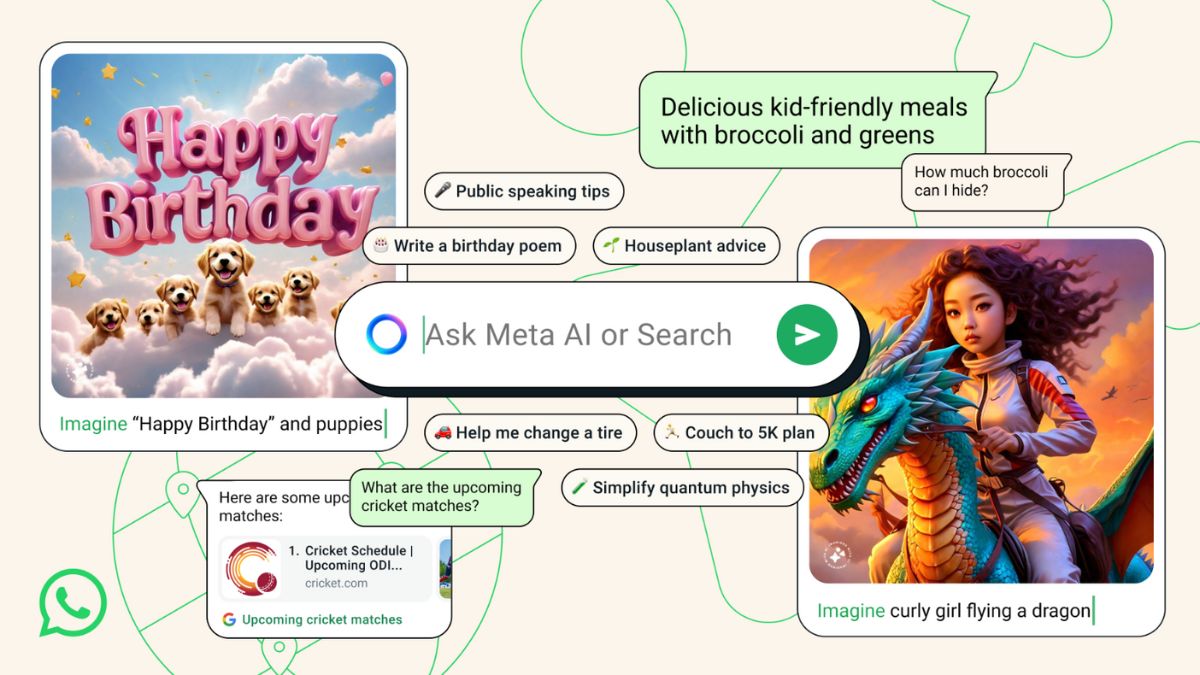
Meta AI also includes a unique image-generation feature. To use this, type the word “Imagine” followed by a description of the image you want. For example:
“Imagine a sunset over a snowy mountain.”
“Imagine a futuristic city with flying cars.”
Meta AI is equally accessible in WhatsApp group chats, allowing multiple users to benefit from its capabilities simultaneously. This functionality is designed to encourage collaborative problem-solving, creative brainstorming and shared exploration of AI tools.
Select the group chat where you want to use Meta AI. Ensure that the group has enabled Meta AI access.
- In the message field, type the “@” symbol.
- A dropdown menu will appear, listing participants and the Meta AI chatbot.
- Select Meta AI from the list.
- Type your question, request, or command and hit send.
- Meta AI will respond to the group chat, making its reply visible to all participants.
That said, if you want to follow-up on the repsonse, you can easily swipe right on the message with the questions.
Frequently Asked Questions (FAQs)
Q1. How do I enable AI search in WhatsApp?
To use AI search, simply locate the Meta AI icon in your app and start a conversation. In group chats, tag Meta AI using the “@” symbol.
Q2. Is Meta AI in WhatsApp safe?
Yes, Meta AI processes only the messages addressed to it, maintaining user privacy. Unrelated conversations remain inaccessible to the chatbot.
Q3. Can I disable Meta AI on WhatsApp?
Currently, there is no option to disable Meta AI. However, you can choose not to interact with it.
Q4. In which languages is Meta AI available?
Meta AI currently supports English and is being gradually introduced to users worldwide.